
Understanding the Context Window of AI Agents
What's in it, and how to optimize it
23 July 2026
You are in the middle of a Claude Code conversation, just five or six prompts in, and the agent has already forgotten one of your rules. It eagerly writes the code you requested but ignores the fact that you also asked for unit tests in your CLAUDE.md file. And when you ask the agent about it, you read something along the lines of: "You are totally right! I made a mistake, I ignored that rule."
No matter if you use Claude Code, Cursor, Antigravity, Codex, or any other AI coding agent, you might have run into this problem. In this article we will explore why it happens by looking at the context window of an AI agent.
I am going to tell you what it is, what's inside it and how you can manage it better so that you do not experience what we call context rot.
TL;DR
- Your context window is finite, it costs money and time, and it is all the model knows.
- Give the agent as much information as it needs, but no more.
- Hand big research off to a sub agent so it does not clog your main context.
- Reset with
/clearwhen you finish a task, and compact a long conversation instead of letting it fill up. - Keep your always loaded files, like
CLAUDE.md, lean.
What a context window actually is
Before we can talk about what the context window is, we first need to understand one thing about AI agents and LLMs (large language models): They are inherently stateless. Whenever an LLM gets a new message passed to it by the AI agent you are talking to, it does not know that it has talked to you before.
To get around this, the LLM does not just receive the last message you sent. It receives every message you sent before too, along with every reply it gave you. The whole conversation gets put into what we call the context window of the AI agent.
The context window represents everything the LLM knows about the conversation so far, up to and including the last message you sent. Based on that, it can produce the next answer.
A helpful way to picture it is a desk. The context window is the agent's desk, and everything it needs to work on your request has to fit on that desk at the same time: your messages, its own replies, the files it opened, your rules. The desk only has so much room. The more you pile onto it, the harder it gets to find the one note that actually matters.
But your messages are only a small part of what actually ends up on that desk.
What's inside the window
The anatomy of the context window might be a mystery to you if you have never had a chance to inspect it, but luckily many AI agents offer a way to see exactly what is in the context, in great detail.
You can also find a lot of detail in the documentation. The Claude Code context window documentation even includes an interactive explorer that shows exactly what fills the window as you chat.
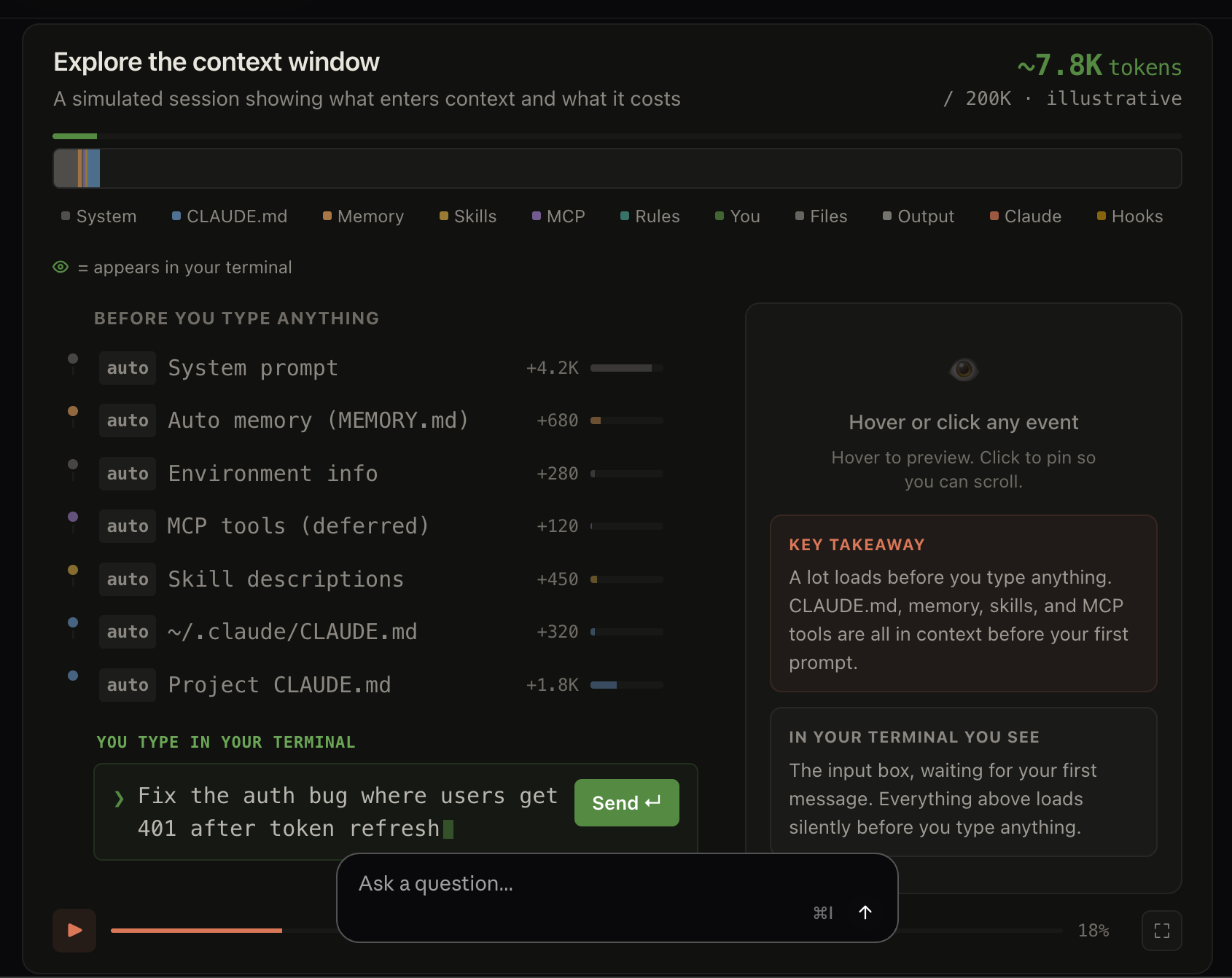
The context window explorer from the Claude Code documentation.
If you try it out, you will of course see the message history, but there is a lot more going on than just this. And here is the part most people miss: what you see is only a fraction of what the model sees. You type a one-line prompt, maybe 45 tokens, and the agent silently reads a file that adds 2,400. Most of your context window ends up filled with things that never scrolled past you.
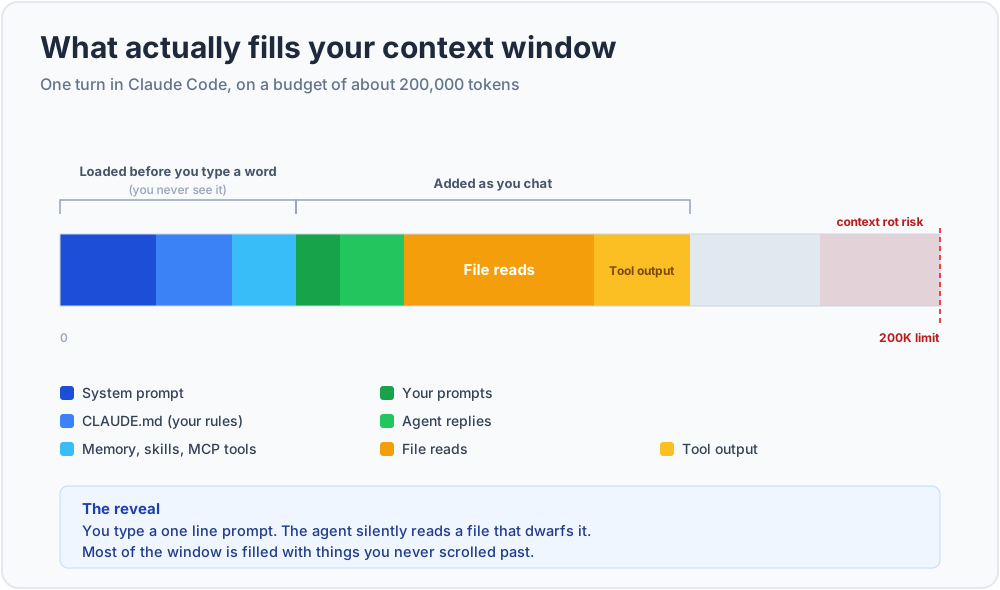
A single turn's context: loaded automatically before you type, plus everything added as you chat.
If we look at the above screenshot using Claude Code as an example (all AI agents are basically the same in that regard), we can see what gets injected right at the beginning and is always available, besides the messages.
The very first thing is of course the system prompt: the built-in instructions the agent ships with, telling the model how to behave and how to use its tools. You don't write it. It comes with the agent.
After that, the rest of the automatic load follows in a fixed order: the auto memory of your AI agent of choice, environment info, the MCP tools you have installed, your skill listing, then the CLAUDE.md file in your user space describing rules for all your projects, and finally your project-specific CLAUDE.md.
One detail about MCP is worth knowing, because it changes the token math a lot. By default only the tool names load. The full schemas stay deferred and the agent pulls in the ones it actually needs on demand, so a large MCP setup does not drain your window before you have typed a single word.
And all of that happens before the first message is even sent to the AI agent and the LLM. While you are chatting, further information will be added:
- your messages
- the responses
- files that are read as part of your request
- the full description of any skills the AI agent decides it needs to load
- rules that auto-load when you touch files matching their path pattern
- output that hooks feed back after they get triggered (e.g. test results). The hooks themselves run as code and cost you nothing
As you can see, the context grows very quickly during your conversation. And a growing context is not a free lunch.
Why a finite window bites
The context window of an AI agent is basically its budget. And all of those pieces of information we saw above compete for it. This has many different implications for you:
The context window is limited. Claude Code, for example, starts with a 200,000-token window (and up to 1M with the newest models). But even with models getting bigger and bigger and AI agents offering bigger context windows, even 1M tokens can eventually be filled up.
Every token costs money. The more context you use, the more expensive your conversation gets. While tokens are still cheap because AI companies keep the prices low to compete for customers, this won't last forever. Being able to manage your context is, and will remain, an important skill in your job.
Every token costs time. The more context the AI agent has to read on every message, the longer you will have to wait for the answer. While this might not make a big difference for a single message, it adds up over time.
Your biggest enemy: context rot. When the context window grows and grows, there is so much information in it that it gets harder and harder for your AI agent of choice to identify the most important bits. If you filled Opus 5's 1M context, you should not be surprised when it misses the instructions about tests in your CLAUDE.md file. It was just too much to handle.
And this does not only happen once the window is completely full. Long before that, a rule that is technically still in the context can get drowned out by everything competing around it. That is exactly how an agent forgets a rule from your CLAUDE.md just five or six prompts in, even though that file is re-sent on every single turn. This is not just a feeling. Chroma measured it across 18 models and found that performance starts to drop well before the window is anywhere near full.
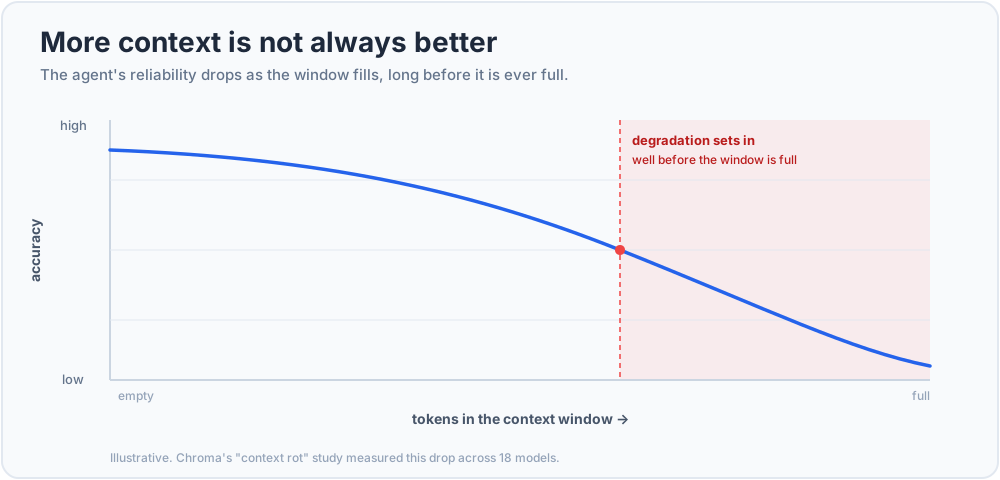
Accuracy degrades as the window fills, long before it is ever full.
As you can see, any piece of information in your context should have a justification. A token in your context that is not really necessary for the current task at hand is a wasted token.
How to manage your context
Now that you know what goes into the context, let's talk about how to manage it better and keep it small.
Context of a newly started conversation
First, let's look at the parts that load automatically, before you even type anything:
One of the biggest parts you actually control is the CLAUDE.md file in your repository and your user space. Both should be as small as possible and only contain information that needs to be injected in every single conversation you have with the AI agent. There are no fixed rules about what is good or bad, but many AI developers I have spoken to agreed on around 200 lines as a good maximum for your CLAUDE.md file.
The other big part is the system prompt. This one is a bit more tricky though. AI agents usually come with a system prompt prepared. And even if they let you change it, an argument can be made that you shouldn't, because it is carefully tuned to get reliable, high-quality behavior and correct tool use out of the model. Changing it can easily make the agent work worse.
When you have many sessions with your AI agent in a project, its memory (often called auto memory) can grow quite substantially. Think of it as an automated version of your CLAUDE.md file. You write CLAUDE.md, and the agent writes its own MEMORY.md (or the equivalent for your agent).
The catch is that it grows on its own and can end up holding things that are wrong or outdated, on top of costing you tokens. So you have two options. Keep it and check it regularly, or do what I prefer and disable the auto memory entirely. If there is something worth keeping, put it in CLAUDE.md yourself instead of hoping the agent keeps the right stuff.
The last thing, albeit less important than the above, are skills. If you are using a huge number of skills, it can add up as well, especially if you downloaded someone's repository of the top 250 helpful skills. What gets injected is only the listing, meaning each skill's name plus its description and when_to_use text. The body of the skill stays on disk until the skill is actually used.
The interesting part is that this listing has a hard ceiling. Claude Code gives it a budget of 1% of the model's context window, and each entry's combined description and when_to_use is truncated at 1,536 characters. Once the listing overflows that budget, descriptions get dropped, starting with the skills you invoke least. So a bloated skills folder does not just cost you tokens. It quietly strips the very keywords the agent needs to pick the right skill.
Only keep skills you actually need for a project, and if you write skills yourself, keep those fields short and put the key use case first. This will also help the agent make the correct decision about using the skill or not. A very long and vague description might lead to the skill getting used too often.
With the above in mind, your context when starting a new conversation should be very focused. You might have heard the term context engineer or context engineering at some point. And this is exactly what you did after applying the rules above.
Ongoing conversations
Apart from the files and other information that get injected into the context at the beginning, there are also some tools and commands that can help you. These focus on a conversation that is already going, and that is what we will look at in this section.
Use
/clearto start fresh. Whenever you are done with a task, clear the conversation. This effectively resets it and starts from scratch. Opening a brand new conversation has the same effect.Use
/compactto shrink without losing the thread. Sometimes you work on a ticket with multiple sub tickets. When you are done with one sub task but still want to continue, because the conversation already contains good context about the main ticket, then you compact it. Compacting replaces the conversation with a short summary of itself, so the agent keeps the important bits while the context shrinks back to almost that of a brand new conversation. Most agents also compact automatically once the window fills up. That automatic pass summarizes the same way a manual one does, but it has to guess what matters to you. Compacting yourself lets you steer it, for example with/compact focus on the auth bug fix, so the summary keeps what you pick instead of what the agent assumes.Hand big work to a sub agent. The main reason sub agents save you context is that they run in their own separate context window. A sub agent can read thousands of tokens of files to do its job and then return only a short summary to the main agent. In the Claude Code documentation example, a sub agent reads about 6,100 tokens of files and hands back around 420, so all of that reading never touches your main context. They are also handy for tasks you repeat often, like a code review that looks the same every time.
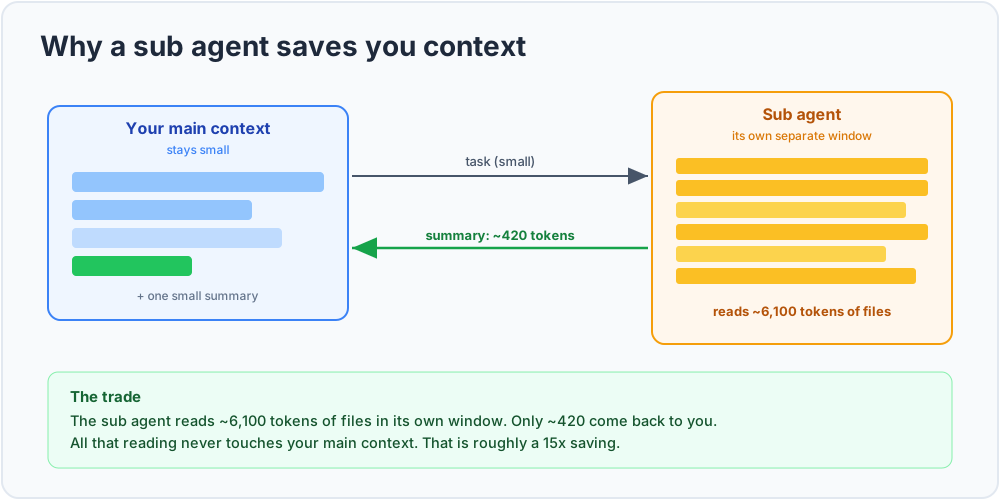
The sub agent does the heavy reading in its own window and hands back only a summary.
Only point the agent at what it needs. Every time you mention a folder or file, the agent reads it and those tokens get added to the context. Provide as little as you can. If you already know exactly which file needs editing, mention only that file so the agent can focus on it. This leads to better results and keeps your context small.
Run
/contextto see what is in there. When you are not sure why your window is filling up, run/context(or your agent's equivalent from the table below). It shows you exactly what is taking up space, which is the first step to trimming it.
Those are the most powerful ways to influence your context while a conversation is going on. But do they work everywhere?
They're all the same
So far we've looked at Claude Code as one example of an AI agent. But there are many others out there.
Luckily, most AI agents these days work more or less exactly the same. They offer the same tools and commands, and they work the same way with context, skills, sub agents, and so on.
Have a look at this table. Often it is just a different naming convention or a different path for the installation of skills, hooks and other tools. But the functionality is largely the same.
| Concept | Claude Code | Cursor | GitHub Copilot (CLI) | Antigravity CLI (agy) |
Codex CLI |
|---|---|---|---|---|---|
| Project rules file | CLAUDE.md |
.cursor/rules/*.mdc |
.github/copilot-instructions.md |
AGENTS.md or GEMINI.md |
AGENTS.md |
| Global / user rules | ~/.claude/CLAUDE.md |
User Rules (settings) | ~/.copilot/copilot-instructions.md |
~/.gemini/GEMINI.md |
~/.codex/AGENTS.md |
| Path-scoped rules | .claude/rules/ (paths:) |
globs: in .mdc |
*.instructions.md (applyTo:) |
none documented | nested AGENTS.md |
| Auto memory | MEMORY.md |
none documented | Copilot Memory | none | Memories (opt-in) |
| Skills | .claude/skills/ |
.cursor/skills/ |
Agent Skills | .agents/skills/ |
.agents/skills/ |
| MCP tools | yes (.mcp.json) |
yes (.cursor/mcp.json) |
yes | yes (.agents/mcp_config.json) |
yes (config.toml) |
| Hooks | yes (settings.json) |
yes (Cursor Hooks) | yes | yes (.agents/hooks.json) |
yes (config.toml) |
| Subagents | .claude/agents/ |
.cursor/agents/*.md |
~/.copilot/agents/ |
.agents/agents/*.md |
.codex/agents/*.toml |
| Compact / summarize | /compact |
/summarize |
/compact |
automatic only | /compact |
| Clear / reset | /clear |
/clear |
/clear |
/clear |
/clear |
| Inspect context | /context |
none documented | /context |
/context |
/status |
These names and paths move fast and vary by version. Values are current as of July 2026.
One row in that table is worth calling out, because it is the exception to everything above. Antigravity has no manual compaction command, no /compact and no /compress. Compaction happens automatically and you use /context to watch the window instead. There is no auto memory either, so anything you want to persist goes into GEMINI.md or AGENTS.md by hand. The advice in this article still applies, you just have one lever fewer to pull.
Conclusion
Remember the agent from the beginning? The one that got confused and started forgetting important facts?
That was context rot, because the agent's context was filled with all kinds of information that it did not need in every session. Your context is finite and every token counts. So think carefully about what to add to the context, especially when it gets added every time, like CLAUDE.md and other files.
Now it is time to improve your own context engineering. Before your next session, run /context (or your agent's equivalent from the table above) and actually look at what is in your window. You will almost certainly find tokens you are spending on nothing. Trim one thing. That is context engineering.